How to Crop an Image in Photoshop: A Updated Guide in 2026

How to Crop an Image in Photoshop: A Updated Guide in 2026

Adobe Photoshop is one of the most popular and versatile photo-editing programs available today. Photographers use it to enhance their images by fine-tuning colors, adjusting lighting, and improving overall quality. However, one of the simplest yet most powerful edits you can make is cropping. In this tutorial, you will learn how to crop an image in Photoshop and why this simple technique can greatly improve your photos.

The Crop Tool is one of Photoshop’s essential features for refining composition. It allows you to remove unwanted edges, straighten framing, and refocus attention on the main subject. By trimming away distractions, cropping helps create a cleaner, more balanced, and visually appealing image.

Mastering the Crop Tool can significantly raise the quality of your photography. It gives you control over image size, aspect ratio, and framing while helping to remove unnecessary elements that take attention away from your subject. Although Photoshop includes many powerful tools, cropping remains one of the fastest ways to transform an image. With just a few clicks, you can reshape your photo to suit your creative goals.

To get the most out of photo editing with Adobe Photoshop, it’s important to understand how its basic tools work. Knowing the fundamentals, especially tools like cropping, will make your editing process smoother, quicker, and more effective, leading to stronger and more professional-looking results.

Understanding the Basics of the Crop Tool

The Crop Tool in Adobe Photoshop gives you full control over how your images are trimmed and framed. It allows you to precisely select the area you want to keep while removing everything else. This process helps improve composition by highlighting the most important parts of the photo and eliminating unnecessary distractions. The tool also supports standard aspect ratios like 1:1, 4:3, and more, and lets you resize your image as you crop, making it a highly flexible feature for all types of photo editing.

To activate the Crop Tool, simply press the C key on your keyboard, or select it from the Tools panel located along the menu bar. Both methods give you instant access, so you can begin refining your images in just a moment.

In the image below, the Crop Tool is highlighted and marked with arrow 1, showing where to locate it within the Photoshop interface.

When you activate the Crop Tool, a cropping frame or overlay automatically appears around your photo. In the previous screenshot, this is marked by arrow 2. The frame includes small adjustment points, known as crop handles, located along the corners and edges of the border. These handles allow you to click and drag to resize or reshape the crop area as needed.

By moving the handles, you can precisely control the framing and select exactly which part of the image will remain in the final result. This makes it easy to zoom in on your subject, remove unwanted background elements, and improve overall composition.

In the screenshot below, you can see an example of how the crop handles are dragged to adjust the cropping area.

In this article, we’ll show you step-by-step how to create precise cutouts from your favorite photos. Easily and seamlessly extract content from any image.

Step 1:

Step 1: lasso tool

Adobe Photoshop is a highly versatile image editing software that caters to both advanced and basic editing needs. While it offers complex and professional features, it is also perfect for simple, everyday tasks. For instance, Photoshop allows you to freely select any element within your image and isolate it from the background or original document. To do this, you can use the Lasso Tool, a flexible selection tool that makes isolating objects quick and precise. The keyboard shortcut for the Lasso Tool is L, enabling fast access for efficient editing.

Step 2: Selected part

Step 2: Selected part

Next, use the Lasso Tool to carefully select the portion of the image you want to cut out. Once the selection is complete, you can process it by removing the background, isolating the object, or applying any edits needed. This step allows you to focus on the specific fragment and make precise adjustments, ensuring your image looks clean and professional.


Step 3: New layer with clipped content

 step 3, New layer with clipped content

After completing your selection, you can use the Copy and Paste function to move the selected area onto a new layer. Simply press CTRL + C to copy the selection, then CTRL + V to paste it. This places the chosen fragment on a separate layer, allowing you to edit it independently from the rest of the image, giving you full control for further adjustments or creative enhancements.


Step 4

step 4

Once the selection is pasted onto a new layer, you can freely edit and adjust it as needed. You also have the option to paste the copied content into a different Photoshop document, giving you flexibility for various projects.


Step 5

step 5,

In addition, Photoshop makes it simple to crop any image into a square or rectangular format. Cropping is an effective way to adjust the height and width of a photo or to emphasize the main subject by removing unwanted areas. To crop an image, activate the Crop Tool, either from the sidebar or by pressing the C key on your keyboard. This tool provides a quick and precise way to refine your image composition.

Step 6

step 6

By default, the Crop Tool lets you trim an image into a square or rectangular shape. Simply click and drag your cursor across the photo to define the area you want to keep or extract. This allows you to quickly remove unwanted parts of the image while maintaining a clean, well-composed frame.


Step 7

Step 8,

After defining the crop area, double-click inside the selected frame to finalize the crop. This action isolates the chosen portion from the rest of the image, leaving you with a clean, focused section ready for further editing or use.


Step 8:

Explore More Another Resource

How to Adobe Photoshop 7.0 Free Download (Updated Guide)

You’ll notice that everything outside the selected crop area has disappeared, leaving only the portion you chose. This means your image has now been successfully cropped and is ready for further editing or use.

Once you’ve finished cropping and editing, don’t forget to save your work. You can either overwrite the original file or use the “Save As…” option to create a new copy with your changes, ensuring your original image remains intact.

Best Practices for Cropping Images in Photoshop

When cropping images, it’s important to think about how the final photo will look. A well-cropped image should appear balanced and visually appealing. Cropping allows you to emphasize the main subject while removing unnecessary or distracting elements from the frame.

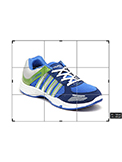
One effective method to improve your photo’s composition is the Rule of Thirds. This involves dividing the image into nine equal sections using two horizontal and two vertical lines. Placing key elements along these lines or at their intersections creates a natural, aesthetically pleasing balance. Other composition techniques, such as the Golden Spiral, can also be used to enhance your images.

While cropping, be careful not to cut out essential parts of the subject. For instance, if cropping a person, avoid removing joints like knees, elbows, or ankles. Keeping these elements intact ensures the photo remains natural and visually comfortable.

The Crop Tool in Photoshop also lets you save time by using presets. Creating and saving commonly used crop settings is a good practice. Whenever you enter new crop dimensions, consider saving them as a preset. This allows you to apply the same settings to other images quickly, streamlining your workflow and making repeated edits more efficient.

You might also read these resources👇

Summary: How to Crop an Image in Photoshop

Cropping in Photoshop is a simple yet powerful technique to enhance your images. With the Crop Tool, you can remove unwanted areas and focus on your main subject. You can select from preset crop sizes or define a custom crop to suit your specific needs.

The Crop Tool also allows you to straighten photos that appear tilted. You can adjust the crop box by dragging the corner handles or repositioning the image inside the crop area. The “Delete Cropped Pixels” option lets you choose whether to permanently remove the cropped portions or retain them for future edits.

For more precise selections, tools like the Magnetic Lasso Tool or Pen Tool are helpful for cutting out complex shapes. Using layer masks allows for non-destructive editing, so you can adjust the crop or selection at any time without losing image data.

With consistent practice, cropping can significantly improve the look and professionalism of your photos. This skill is invaluable for photographers, graphic designers, and anyone working with images. Try these cropping techniques and see how they can transform your photography workflow.